 USA + International
 OWC Canda
 OWC Europe
How to Choose the Right Desktop Storage: Capacity, Speed, and Interface Explained
Not all desktop storage solutions and drive enclosures are created equal. Here are the factors you need to consider to choose the best desktop storage solution for your needs.
Wayne Grayson • Sep 02, 2026
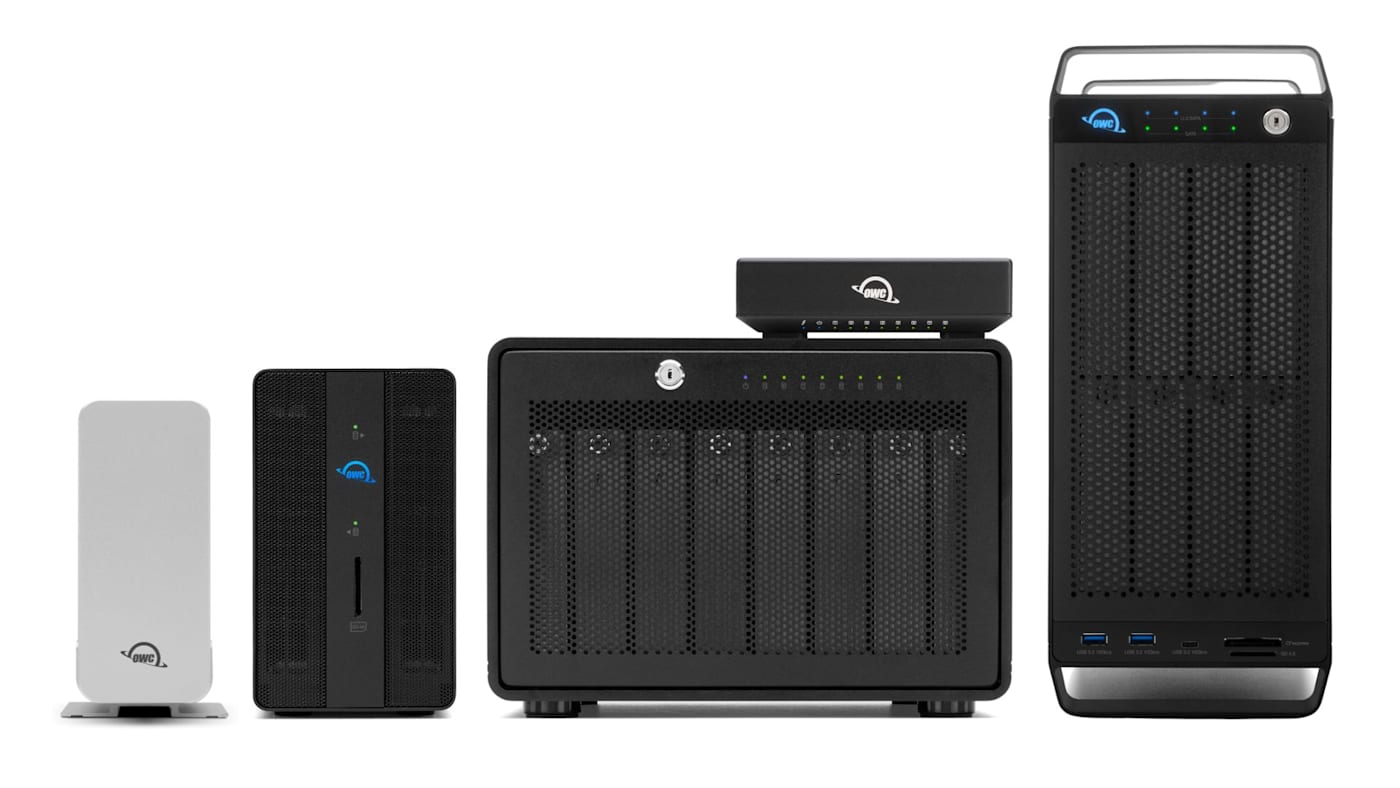
OK, so you need a desktop storage solution and you’re wondering where you should start. And while there are a few factors to consider when finding the best desktop storage solution for your needs and workflow, we recommend starting with figuring our how much capacity you’re going to need.
Capacity
The reason we recommend starting with capacity is because it narrows things down quite a bit right off the bat. If you only need 24TB or less, a single-bay HDD enclosure like the Mercury Elite Pro has you covered without breaking the bank. If you need more than 24TB, you'll want to consider a dual-bay HDD system like OWC Gemini or, if speed is a priority, you can go with an SSD enclosure like the Exrpess 4M2, Express 4M2 Ultra, or the all-in-one hybrid storage with Thunderbolt docking found in the OWC StudioStack. And if you need more than 48TB, that's when you'll want to consider a larger HDD enclosure like the OWC ThunderBay 4 or ThunderBay 8.
When it comes to actually figuring out how much capacity you need, the most common mistake we see is failing to take into account how much your capacity needs will grow in the future. Desktop drives are usually meant to be long-term homes for project files, photo libraries, and video archives. All of these are data stores that only grow as time goes on.
A common rule of thumb for determining how much capacity you need for backups is to simply double the capacity of the drive your stuff currently lives on. In other words, if your data is currently comfortable on a 1TB hard drive, buy a 2TB drive for backups. And while the 2x rule works as general advice, it can also lead to either buying too much or too little capacity. That’s why we recommend the following formula:
Total storage needed = Amount of data currently on your drive + (Average monthly data growth × Number of months you want covered)
We wrote a whole post on this formula with tips on how to accurately figure out your inputs to ensure you get the exact amount of capacity you need today and into the future, so check that post out here.
HDD or SSD Enclosure?
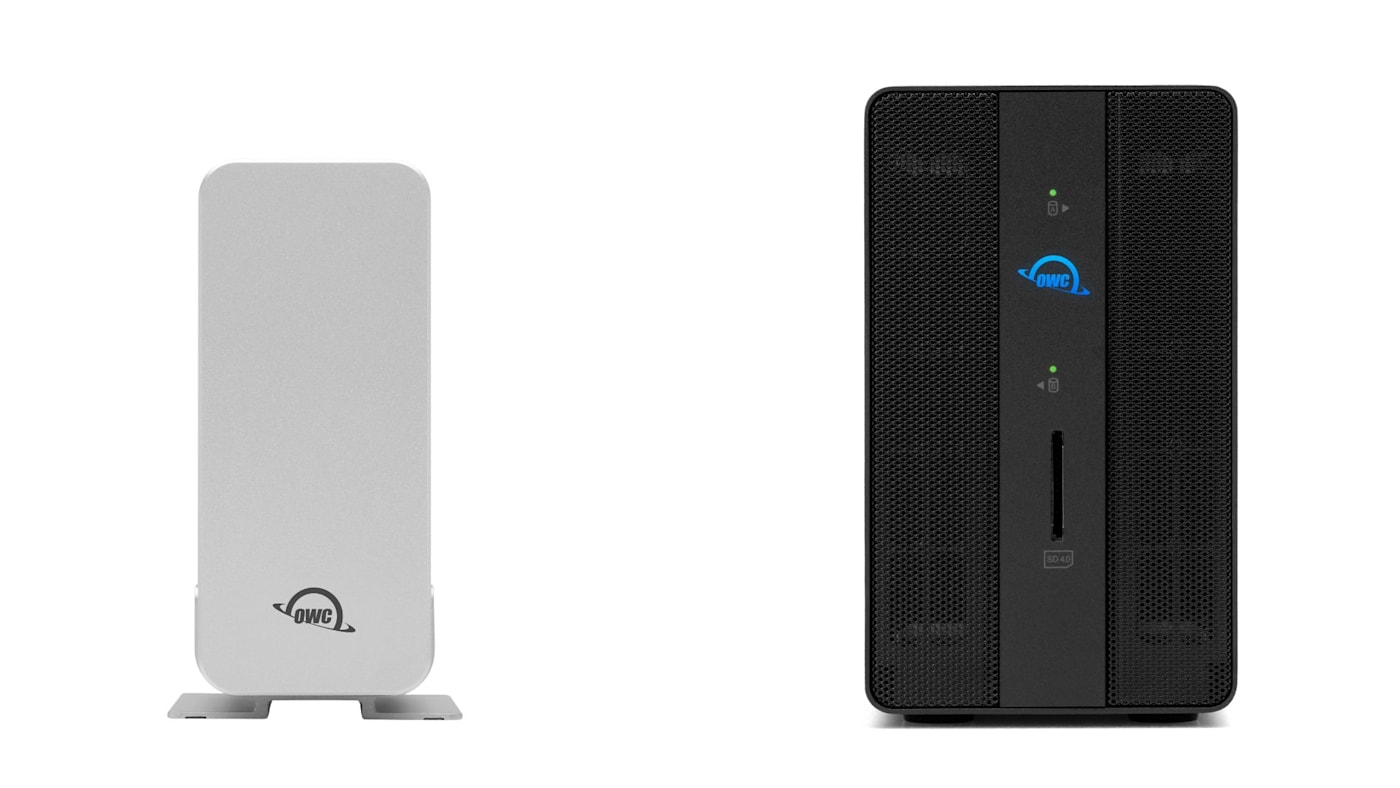
For most desktop use cases such as Time Machine backups, finished project archives, large media libraries, a traditional HDD enclosure remains the smarter economic choice. You get way more capacity per dollar, and the drive isn't moving around enough for the spinning mechanical components of an HDD to be a practical concern. Our HDD enclosures scale from the single-bay Mercury Elite Pro, to the dual-bay Gemini, and up to the four-bay ThunderBay 4 and eight-bay ThunderBay 8 and ThunderBay Flex 8.
An SSD-based desktop storage solution (or a solution that incorporates both HDD and SSDs like the OWC StudioStack) earns its higher cost when speed is a top priority. If the enclosure is going to be used for active video editing, batch photo exports, or regular large data imports in addition to acting as a spot for backups and shared access, an SSD-based solution is definitely worth looking into. OWC offers desktop SSD enclosures that range from the speedy Express 4M2, the extremely scalable Thunderbolt 5-based Express 4M2 Ultra, and all the way up to ThunderBlade X12, the drive built for the most demanding cinematic and post-production workflows.
If you’re going to be doing any kind of regular work with the drive where you want to minimize frequent periods of waiting, the extra cost of an SSD solution is often justified.
Single-Bay vs. Multi-Bay HDD Enclosure?
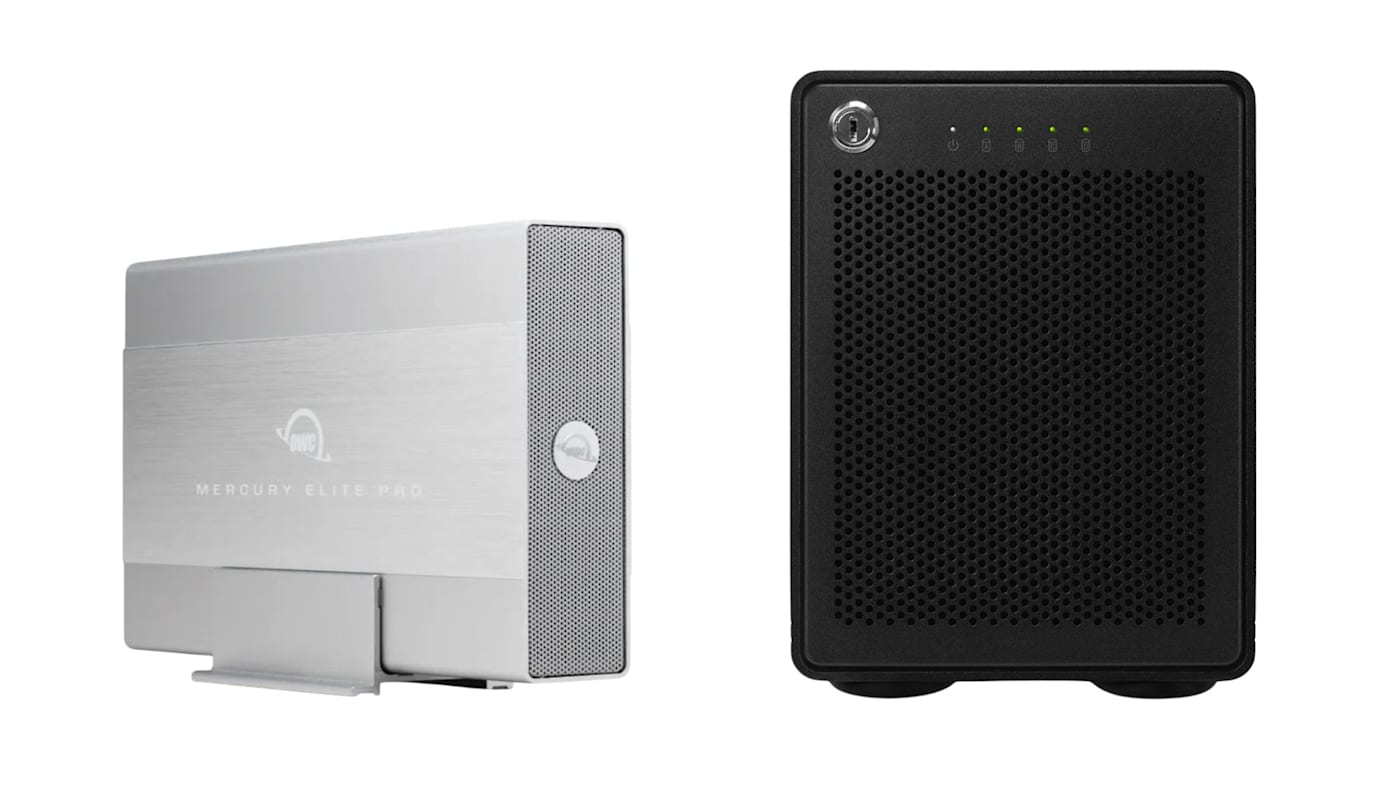
A single-bay desktop drive like the OWC Mercury Elite Pro is the simplest type of desktop storage solution: one drive, one volume, and nothing to configure. Just plug it in and voila, 24TB of capacity at your disposal. It’s a proven, no-fuss workhorse for backups, archives, and everyday desktop storage. If all you’re looking for is a single drive that you can plug for backups, the Mercury Elite Pro is a great entry-level option.
You’ll want to step up to a multi-bay enclosure if you need more capacity or the benefits of RAID. RAID stands for Redundant Array of Independent Disks. Instead of storing your data on one drive, a RAID solution spreads it across multiple drives working together as a single system. Depending on how a RAID is configured, that arrangement can make your storage faster, safer, or larger — sometimes more than one of those at once, though rarely all three simultaneously. We break all of this down in more detail in our guide to RAID here.
Dual-bay desktop drives such as the Mercury Elite Pro Dual or OWC Gemini can house up to two drives and include a hardware RAID switch, letting you choose RAID 0 for maximum speed and combined capacity, RAID 1 for mirrored redundancy, Span to combine both drives into one large volume, or Independent mode to use both drives separately. Plus, you can equip both of these drives with either HDDs or SSDs at capacities up to 48TB. As we detailed earlier, Gemini takes things one step further with built-in Thunderbolt docking capability.
Then there are the big boys: the quad-bay ThunderBay 4 and eight-bay ThunderBay 8. These enclosures use traditional 3.5” hard drives, and they remain the most cost-effective way to get large amounts of RAID-protected capacity. ThunderBay 4 and ThunderBay 8 support RAID 0, 1, 4, 5, and 1+0 via SoftRAID, with capacities scaling into the tens of terabytes depending on the drives installed.
Interface: Speed and Connectivity
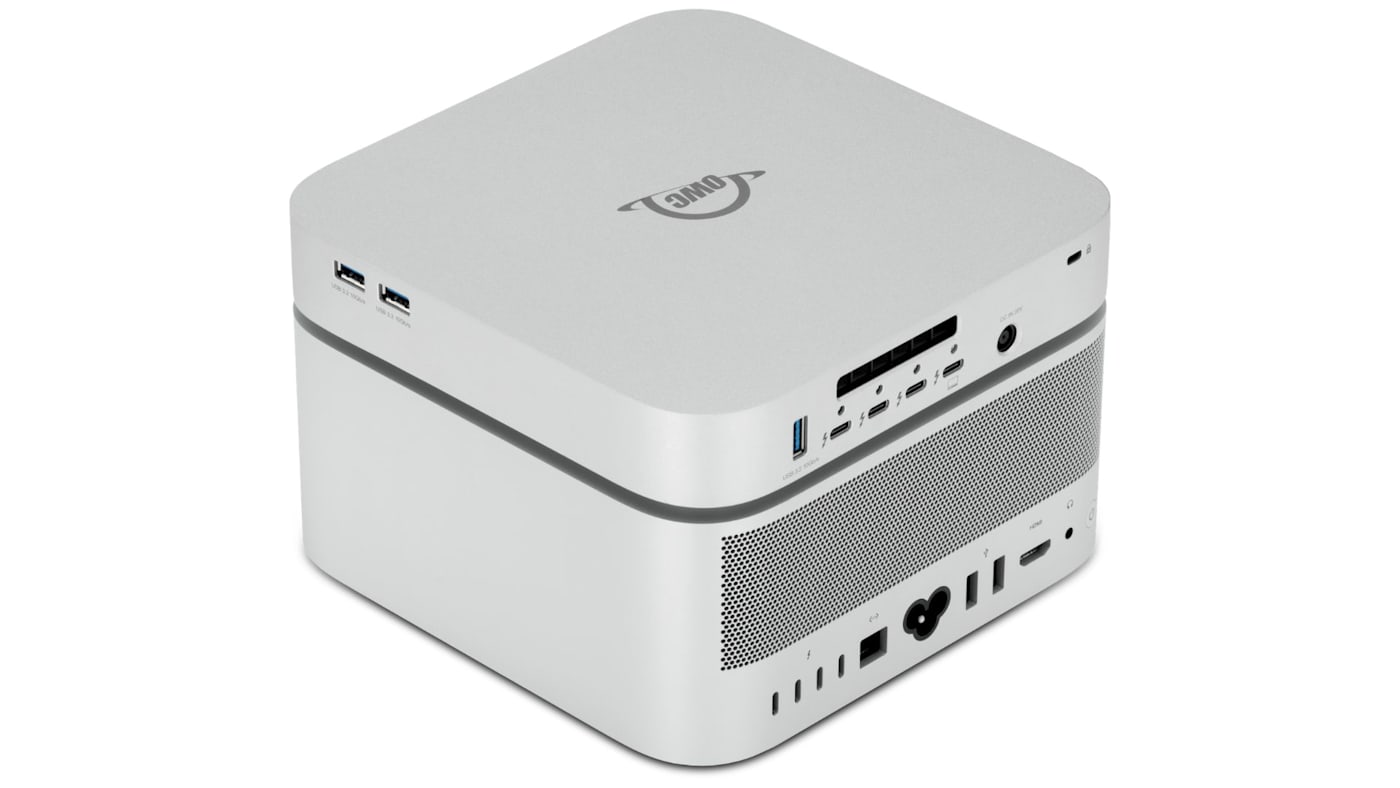
Desktop drives commonly connect via USB or Thunderbolt, and the real-world difference matters less here than it does for cutting-edge portable SSDs, simply because most desktop HDD-based storage doesn't come close to saturating even USB 3.2's bandwidth.
Where interface really matters is with SSD-based desktop storage, multi-bay RAID setups, and in dual-purpose enclosures with hybrid storage or docking capabilities like the OWC Gemini or the StudioStack pictured above. All of these represent solutions that are large amounts of throughput that require the high bandwidth ceiling of Thunderbolt.
How to Decide
- Need simple, reliable, no-fuss storage for backups or archives? A single-bay drive like the Mercury Elite Pro is perfect as long as your capacity needs are 24TB and under.
- Need redundancy, flexibility, or more total capacity? Dual-bay drives like the Mercury Elite Pro Dual or the docking-capable Gemini give you RAID options and capacity up to 48TB. If you need more capacity, you'll want to look at a ThunderBay 4 or a ThunderBay 8.
- Want your storage to make the most use of its space on your desk? The OWC Gemini and StudioStack are Thunderbolt enclosures that combine storage and docking.
- Working primarily in active edits, not just storage? Prioritize SSD-based storage and a high-speed USB4 or Thunderbolt connection with options like the speedy Express 4M2, the highly scalable Express 4M2 Ultra, or the hybrid storage all-in-one solution for Mac Studio users, the StudioStack. And if you’re in time-sensitive post-production work, give the ThunderBlade and ThunderBlade X12 a look.
Other topics you might like
When to Choose Desktop Storage Over Portable SSDs
Updated on Sep 2, 2026
What Is the 3-2-1 Backup Rule? How to Ensure Your Data is Fully Protected
Updated on Jul 27, 2026
How Much Backup Storage Do You Really Need?
Updated on Aug 21, 2026
What is RAID? How it Works and How to Choose the Best Array for Your Needs
Updated on Jul 21, 2026