 USA + International
 OWC Canda
 OWC Europe
Thunderbolt Dock vs. USB-C Hub: What’s the Actual Difference?
A cheap USB-C hub is very different from a well-designed Thunderbolt dock or hub. Here's what you need to know and how to choose the best tool for your setup.
Wayne Grayson • Jul 01, 2026
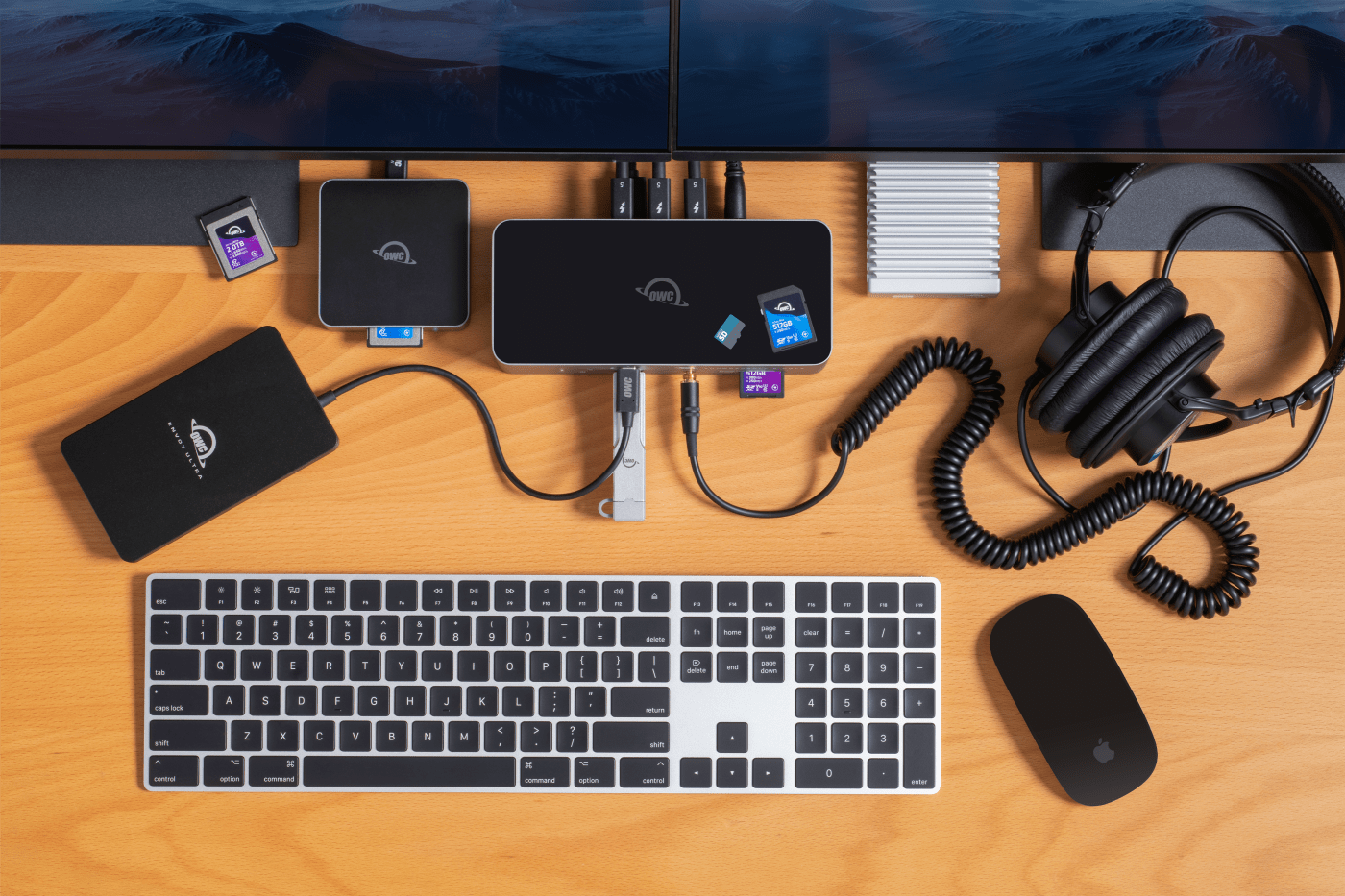
The names and terminology around docks and hubs that allow you to expand the ports on your tablet or computer can be pretty confusing. Worse yet, that confusion can cost you time and money. Someone buys a $30 USB-C hub expecting a full workstation setup and ends up with flickering displays and drives that drop out. Someone else spends on a full Thunderbolt dock when all they really needed was one more (or a different type of) port. And both have wasted their time on inadequate solutions to their problems.
Understanding the difference between a dock and hub is crucial for optimizing your desktop or on-the-go setup. So, let’s talk about it.
USB-C Is a Connector, Not a Performance Standard
First up, let’s address one of the most persistent misconceptions about docks, hubs, and cables that we see: USB-C is not a single unifying technology for all docks, hubs, and cables.
USB-C describes a connector shape — the small oval port on your laptop. What actually happens when you plug something into that port depends entirely on the protocol running through it: USB 3.2, USB4, Thunderbolt 3, Thunderbolt 4, or Thunderbolt 5. Each of these protocols carry dramatically different speeds, bandwidth guarantees, and device capabilities.
This is why two USB-C hubs at wildly different prices can look identical from the outside while behaving very differently. Most of the affordable hubs sold at mass-market prices run on USB 3.2 Gen 1 or Gen 2, meaning they share a single pool of bandwidth across all of their ports simultaneously. For USB 3.2 Gen 1 devices, that pool is 5 Gb/s. For Gen 2 devices, the pool is 10Gb/s. Connect a display, an external drive, and a card reader at the same time, and they’re all competing for the same limited pipe. That’s why you see dropped connections, slow transfers, and displays that cannot hold their full resolution under load.
What a USB-C Hub Does
A USB-C hub is a pass-through device. It takes one USB-C port on your computer and shares that single port's bandwidth between multiple ports on the hub: a mix of USB-A ports, maybe an HDMI or DisplayPort output, and sometimes a card slot. The operative word here is shares: every one of those ports draws from whatever bandwidth the single USB-C connection can carry.
For light use like charging a phone while a keyboard and mouse are connected, or connecting a display or Ethernet cable to a laptop that only has USB-C ports, a USB-C hub is adequate. But the moment you add a display or a high-speed drive, you run into the bandwidth ceiling. USB-C hubs cannot run Thunderbolt-native devices at full speed, and their display support tends to top out at a single 4K output under ideal conditions.
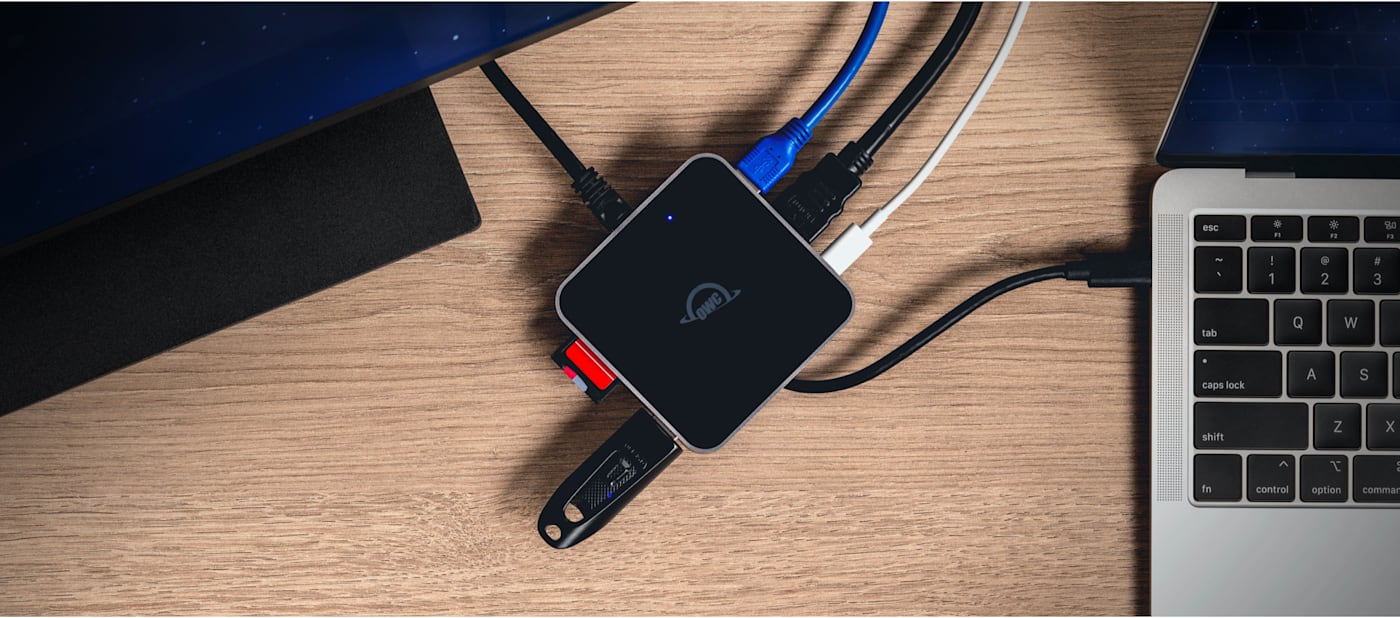
For those situations where all you need is an HDMI or USB-A port, or an Ethernet jack, don't settle for a cheap, poorly made hub. The OWC Travel Dock and Travel Dock E are well-built USB-C hubs that pack away easily and offer substantial expansion that is guaranteed to work. The Travel Dock is a highly capable USB-C hub designed to throw in a bag for whenever you need the odd port. Travel Dock E adds an Ethernet jack for maximizing hotel or office network speeds.
What a Thunderbolt Hub Does Differently
A Thunderbolt hub is a huge step up from a USB-C hub. While a Thunderbolt hub is like a USB-C hub in that it allows you to connect multiple devices via one port on your host device, that’s where the similarities end.
Rather than passively splitting a USB-C connection’s much smaller pool of bandwidth, a Thunderbolt hub uses Intel’s Thunderbolt protocol to create multiple downstream Thunderbolt ports. And while these ports do split a single pool of bandwidth, that pool is much larger and Thunderbolt hubs are capable of dynamically and intelligently splitting that bandwidth between devices.
Thunderbolt 3 vs. Thunderbolt 4 vs. Thunderbolt 5
While a USB-C hub tops out at 10Gb/s, a Thunderbolt hub splits a much larger pool of bandwidth between connected devices. But that much larger pool can vary quite a bit in size depending on the generation of Thunderbolt your hub is built on.
Thunderbolt 3 and Thunderbolt 4 hubs split a bandwidth of 40Gb/s while a Thunderbolt 5 hub shares 80Gb/s across its downstream ports. Thunderbolt 4 hubs remain an extremely capable solution for 90% of users. But those who want to push multiple 6K or 8K displays and need the fastest drive speeds possible will want to go with a Thunderbolt 5 solution like the OWC Thunderbolt 5 Hub we’ll detail shortly.
Regardless of whether you go with a Thunderbolt 4 or Thunderbolt 5 hub, both deliver massive increases in bandwidth over USB-C hubs that allows Thunderbolt hubs and docks to serve as true single cable setups: plug all your devices into the dock and enjoy the ease of connecting everything at once without a tangle of dongles and cables cluttering your bag or desk.
The OWC Thunderbolt 5 Hub
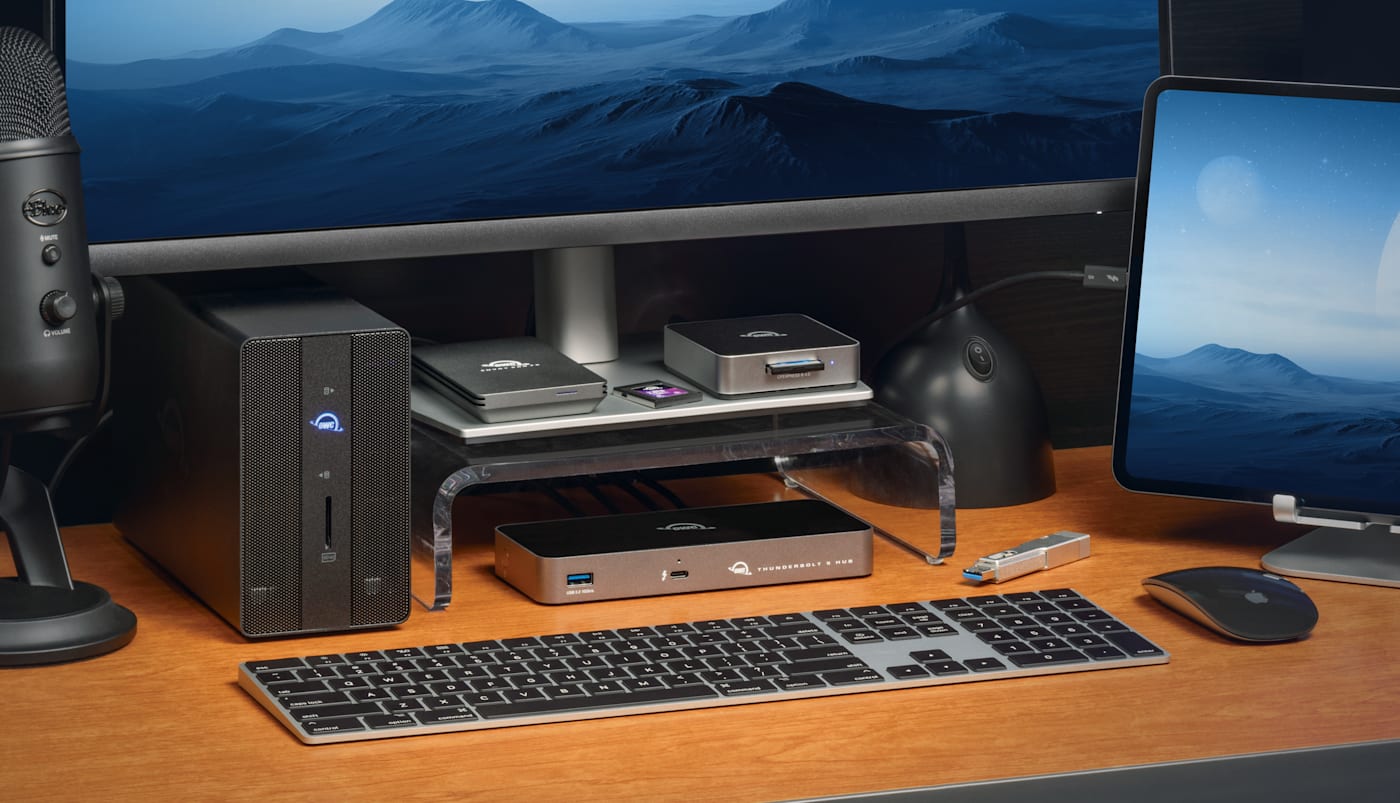
The OWC Thunderbolt 5 Hub illustrates what this looks like in practice. Connect one Thunderbolt 5 cable from your computer and you gain three full Thunderbolt 5 downstream ports plus a USB-A port.
Another perk of Thunderbolt is daisy chaining. Each of the Thunderbolt 5 Hub’s downstream ports can head its own independent daisy chain. That means you can plug a Thunderbolt device into one of the hub’s ports and then connect another Thunderbolt device to the first Thunderbolt device in the chain if that device has its own downstream port. For instance, our Thunderbolt 5-powered Express 4M2 Ultra is an external SSD array that allows you to daisy chain up to five drives together in one daisy chain.
Plus, you can remove a device from one chain without affecting the others. What they share is the upstream Thunderbolt 5 bandwidth pool, but at 80Gb/s that pool is large enough that simultaneous high-demand use across all three ports on the Hub is rarely a practical constraint.
What a Thunderbolt Dock Adds
A Thunderbolt dock takes the bandwidth architecture of a Thunderbolt hub and wraps it in a complete workstation expansion system. In addition to downstream Thunderbolt ports, a dock adds wired Ethernet, SD/microSD card slots, USB-A ports for legacy devices, an audio jack, and more substantial laptop charging. And all of it all over a single cable connection.
The OWC 11-Port Thunderbolt Dock is a strong example of what Thunderbolt 4 docking looks like at its best: three downstream Thunderbolt 4 ports, USB-A, Ethernet, card readers, audio, and 96W of charging power. Connect one cable and your laptop gains a full workstation’s worth of peripherals.
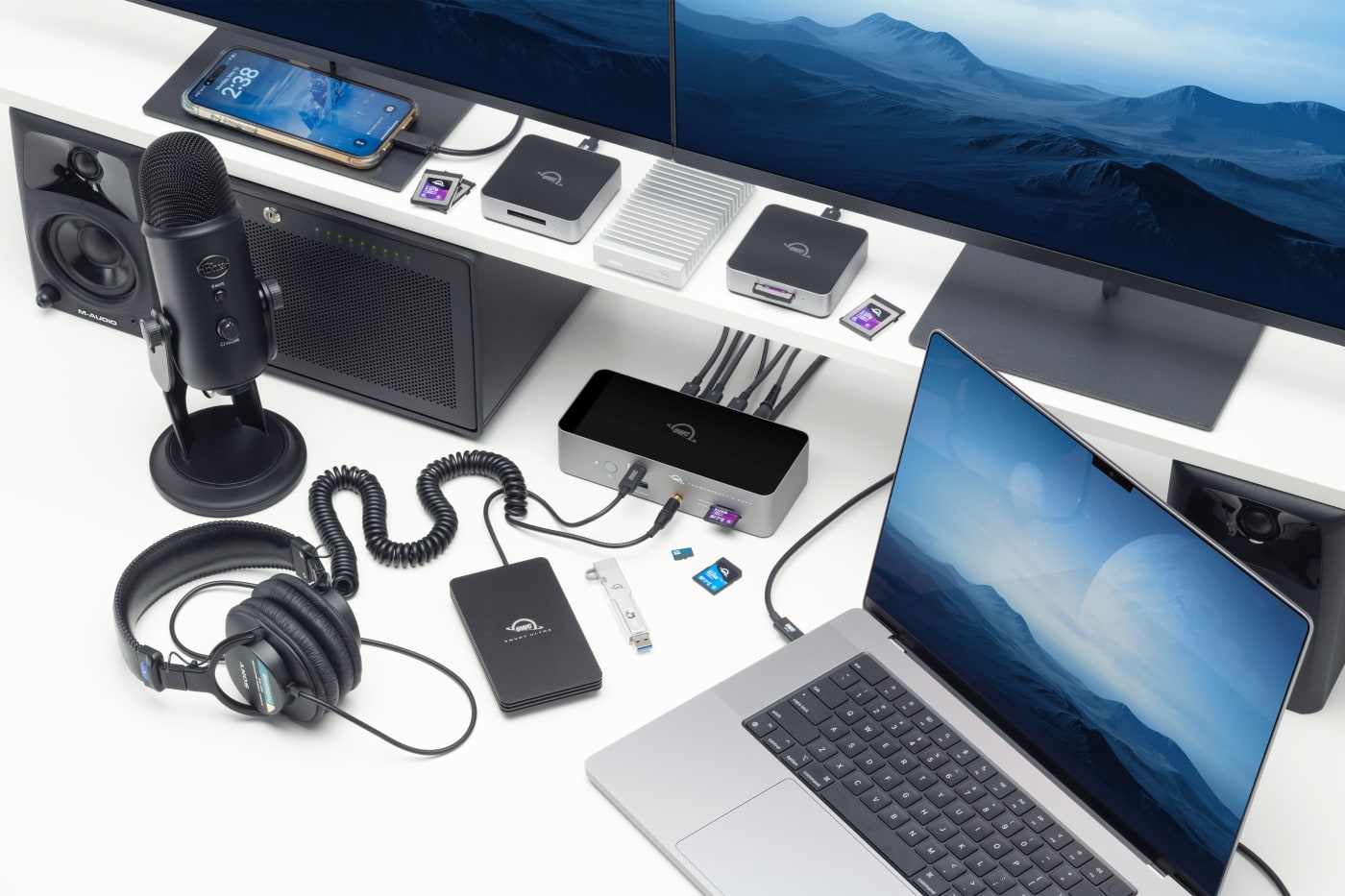
The OWC Thunderbolt 5 Dock takes that same principle into the Thunderbolt 5 generation. Eleven ports over one Thunderbolt 5 cable: three downstream Thunderbolt 5 ports, two USB-A 10Gb/s ports, one USB-A 5Gb/s port, 2.5GbE Ethernet, SD and microSD UHS-II slots, a 3.5mm audio combo jack, and up to 140W of laptop charging. It supports up to three 8K displays on Windows or dual 6K displays on Mac. The fanless aluminum enclosure keeps it quiet under any workload.
For professionals who need portability alongside full dock functionality, the OWC Thunderbolt Go Dock delivers an 11-port solution designed to travel with you thanks to its integrated power supply.
The Right Tool for Your Setup
Here is a practical framework for choosing the right hub or dock for your needs:
- If you simply need a reliable, lightweight hub with a display output, a USB-A port or two, and, optionally, wired Ethernet, the OWC Travel Dock or Travel Dock E is the right call. Simple, well-built, and designed for exactly this use case.
- If you simply need more Thunderbolt ports and the ability to daisy chain, go with a Thunderbolt hub. If you have a Mac that supports Thunderbolt 3 or Thunderbolt or if your machine is a PC that supports Thunderbolt 4, go with the OWC Thunderbolt Hub. If you have a Mac or PC that supports Thunderbolt 5, go with the OWC Thunderbolt 5 Hub.
- If you want a complete single-cable desk setup with everything flowing from one connection — including displays, legacy USB-A devices, SD cards, audio, etc. — get a Thunderbolt dock. If you need Thunderbolt 4, you’ll want the OWC 11-port Thunderbolt Dock. If an integrated power supply is important to you for easy packing, grab an OWC Thunderbolt Go Dock. If you need Thunderbolt 5, the OWC Thunderbolt 5 Dock is the one you want.
One important compatibility note: While Thunderbolt 5 docks and hubs are fully backwards compatible with Thunderbolt 4, Thunderbolt 3, USB4, and USB-C computers, they will only run at the speed of the connected host. That means, if you use a Thunderbolt 5 dock or hub with a Thunderbolt 4 machine, everything will work perfectly, but you won’t be getting Thunderbolt 5 bandwidth or speed. Unlocking the full speed of a Thunderbolt 5 dock requires upgrading the host Mac or PC to a Thunderbolt 5 machine.
Also, Thunderbolt 4 docks and hubs are fully compatible with both Thunderbolt 3 and Thunderbolt 4 Macs. However, if you’re a PC user, you’ll need to ensure that you have a Thunderbolt 4 PC to use a Thunderbolt 4 dock or hub.
Other topics you might like
OWC Dock Ejector 2.1 Updates Make Safe Disconnects and High-Power Dock Charging Even Easier
Updated on Sep 25, 2026
How to Maximize Your New M5 Max and M5 Ultra Mac Studio: Storage, Docking, and Connectivity
Updated on Sep 16, 2026

The New OWC USB4 Hub Delivers the Ports and Speed You Need, Nothing You Don't
Updated on Sep 9, 2026