 USA + International
 OWC Canda
 OWC Europe
If You Still Aren't Filming Your Podcast, Apple's Video Features in the Podcasts App Make This a Great Time to Start
Apple has made big changes to its Podcasts app, now featuring video episodes front and center, while making it easier than ever for creators to add video to their shows.
Wayne Grayson • Mar 26, 2026
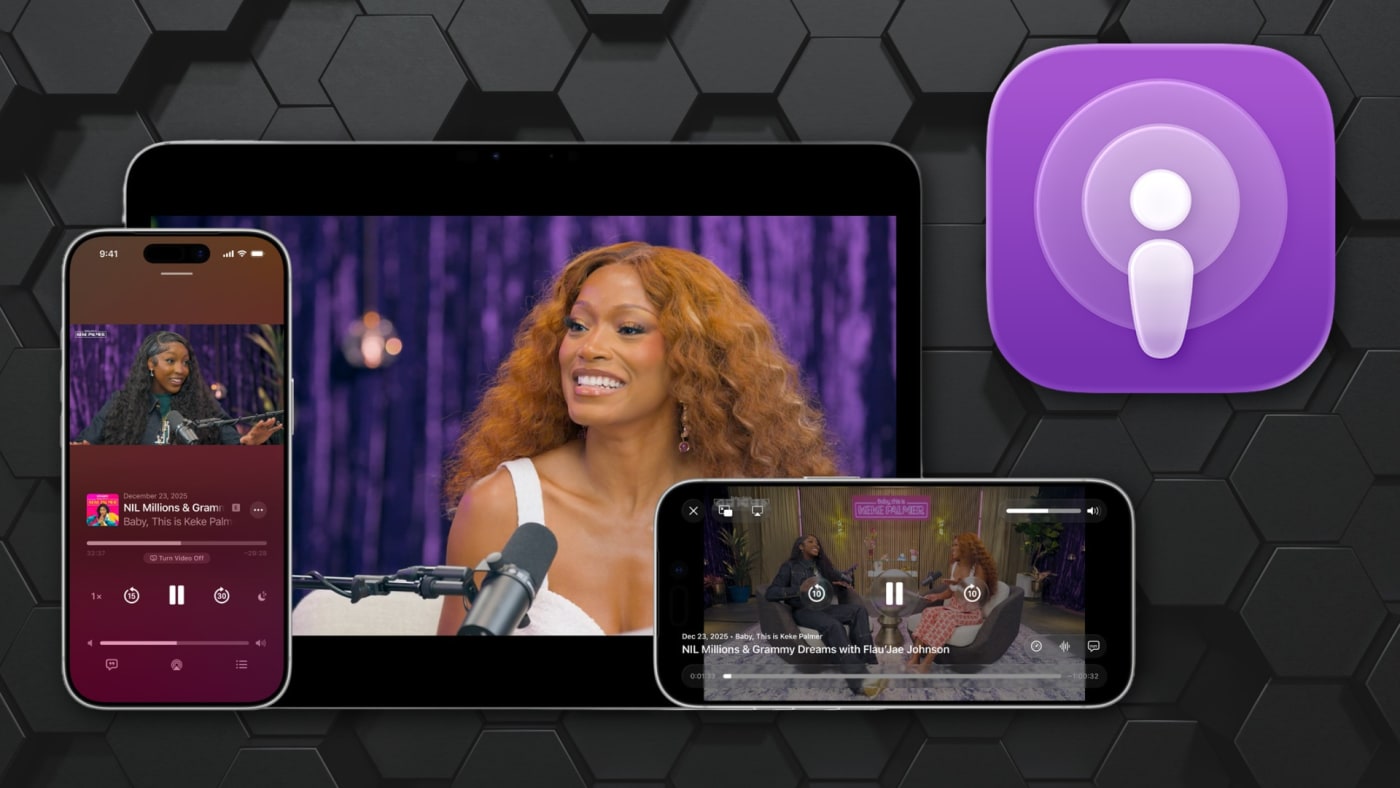
With the release of iOS 26.4 and iPadOS 26.4 earlier this week, Apple launched a rebuilt podcast experience in its Podcasts app, putting video on truly equal footing with audio for the first time.
As part of rethinking how users consume podcasts, Apple has also streamlined the process of uploading video to the Podcasts platform, removing most of the technical friction that made video podcasting on Apple’s platform more trouble than it was worth.
If you’ve been watching the growth of video podcasting from the sidelines, or, maybe you just haven’t seen the value in uploading your episodes to Apple’s platform, now is a good time to take a serious look at what’s involved in getting started.
Why This Matters for Creators
Video podcasting has been growing for years, driven largely by YouTube’s dominance as a discovery platform. Spotify has made its own push into video and even Netflix has gotten into the podcasting game, now featuring a huge stable of shows front and center.
The move to offer both audio and video versions of each episode has real momentum, even if you’re only using the video to create clips for TikTok and Instagram. As a result, creators who have stayed audio-only, the competitive pressure to at least consider video has been building.
As discussed earlier, Apple’s previous approach to offering video podcasts wasn’t great. The app supported adding video files via RSS, but the experience was clunky, the monetization tools weren’t there, and the overall implementation felt like an afterthought.
But with pressure from Spotify and Netflix, and now the fact that YouTube is the predominant platform for podcast consumption, Apple had to make a move.
What Apple has built is a native, first-class video experience powered by HTTP Live Streaming (HLS), the same technology underlying high-quality video delivery across Apple’s platforms.
What the New Experience Looks Like for Your Audience
The first thing you’ll notice about the Podcasts app after updating to 26.4 is that video is front and center. Plus, the option to watch has been implemented into every corner of the app. It’s not shoved into a separate category or done in such a way that you have to work to find it.
If a show you listen to has uploaded a video counterpart to a given episode, a quick toggle or simply sleeping the device switches you between the formats.
Plus, video can be expanded to full horizontal display for a more immersive watch and Episodes can be downloaded for offline viewing and the HLS tech behind the distribution automatically adjusts video quality based on network conditions, so playback stays smooth whether your listener is on fast Wi-Fi or a spotty cellular connection.
What’s New for Creators
The single biggest practical improvement is that video integrates into your existing show. You don’t need to create a separate feed, build a separate show page, or ask your fans to go find anything. Video simply filters in as an available option as part of a new episode.
Another huge new feature for podcast creators is an upgrade to ads in video episodes. For the first time on Apple Podcasts, creators can dynamically insert video ads into their episodes, including host-read spots. This brings video podcasters into parity with the dynamic ad insertion tools that audio podcasters have been using for years and opens up access to the broader video advertising market. You can monetize through both sponsorships and dynamic ads while maintaining full creative control over your content.
Apple does not charge creators or hosting providers to distribute podcasts on Apple Podcasts, whether through traditional RSS/MP3 or the new HLS video system. Apple will charge participating ad networks an impression-based fee for delivering dynamic ads later this year, but that cost falls on the ad networks, not on you.
How to Publish Video to Apple Podcasts
The new video system requires your podcast hosting provider to support Apple’s HLS video delivery. Not every host is there yet, so this should be the first thing to check when getting started.
Launch partners include Acast, Amazon’s ART19, iHeartMedia’s Triton Digital, and SiriusXM, including SiriusXM Media, AdsWizz, and Simplecast. Since the initial announcement in February, Apple has also confirmed support from Podspace, Riverside, Ausha, Firstory, and Transistor FM.
If your current host isn’t on the list, it’s worth checking their documentation or contacting them directly as the list of supported providers is expected to grow. Apple has also published creator-facing documentation and production guidance at podcasters.apple.com, which is the best place to find up-to-date information on which hosts are supported and how to enable HLS video for your show.
If your hosting provider does support HLS, you’ll need an Apple Podcasts Connect account and then you’ll need to claim your show. From there, you’ll generate an API key and share it with your hosting provider if you haven’t already. After that it’s really as simple as uploading the video through your hosting provider.
You can see the full instructions for posting video to Apple Podcasts on Apple’s support page here.
Getting Started With Filming Your Podcast
If the rebuild of Apple Podcasts has motivated you to either start a video podcast or start filming your current show, let’s talk through some tips on getting started with filming a podcast.
Apple’s announcement didn’t include specific technical requirements for videos, but things should be fairly straightforward. Getting started with video podcasts doesn’t require a studio rebuild. Most creators begin with what they already have: a Mac with a decent webcam or a connected mirrorless camera, reasonable room acoustics, and good lighting. The bar for a watchable video podcast is lower than most people assume.
A few areas worth thinking through before you start filming your show:
• The Camera: Your Mac’s built-in camera may be sufficient to start, particularly on newer models. A mirrorless camera connected via HDMI capture card will give you a huge production step-up if you want it. But even if you can’t swing a dedicated camera, using your iPhone through the Mac’s Continuity Camera feature will give you a massive boost in quality over any built-in webcam.
• Audio: Audio quality matters even more in video podcasting than in audio-only shows, because bad sound is more distracting when there’s a face on screen. If you’re already using a dedicated USB or XLR microphone, you’re in good shape. If you’ve been relying on a built-in mic or the mic in your AirPods, this is worth addressing before you go video.
• Lighting: A single softbox or ring light makes a substantial difference. Flat, soft, even light is the goal. Avoid backlit setups where a window is behind you.
• Storage: Video files are significantly larger than audio files. A 60-minute video podcast episode recorded at moderate quality can easily run several gigabytes. Build a storage plan into your workflow before you start accumulating footage, especially if you’re also keeping raw project files for editing. The OWC Envoy Pro Elektron and Express 1M2 are great for housing video files and make great editing drives as well.
• Editing: Final Cut Pro and DaVinci Resolve are both strong options for podcast video editing on Mac. If you’re already editing audio in a DAW and exporting to video, your workflow will need some adjustment, but neither tool requires you to start from scratch. And if you want to automate huge chunks of your podcast editing with the power of AI, Riverside is a fantastic all-in-one platform that allows you to schedule, organize, and record audio and video shows and save quite a bit of time in the editing and upload process. Plus, Riverside also has a ton of great features aimed at enhancing audio and video—features that can be real life savers in the event of a spotty network connection or in the event that you or your guest were using a different mic than you/they thought.
A Few Things to Know About Platform Availability
The enhanced video experience is available now on iPhone, iPad, and Apple Vision Pro, as well as through the Apple Podcasts web app. The macOS Podcasts app and Apple TV do not currently support HLS video playback, which is odd, but also worth keeping in mind when thinking about where your audience will be watching.
Other topics you might like

Podcasting Has Never Been Easier Than With the New Zoom All-in-One Control Station
Updated on Dec 3, 2025

The New Shure MV7i Combines a Microphone and Interface to Save You Time, Money, and Space
Updated on Jan 22, 2025
Final Cut Pro and Logic Pro are Finally Coming to the iPad
Updated on May 9, 2023
Camo Studio is the Best App for Using an iPhone as a Webcam on Windows
Updated on May 1, 2023