 USA + International
 OWC Canda
 OWC Europe
What Is the Best Drive Format? APFS, HFS, NTFS & exFAT Explained.
Picking the right format for an external drive doesn't just affect compatibility. It also impacts performance, security, and metadata. Here's how to choose the best format for your needs.
Brian Levin • May 13, 2021
What are the different drive formats?
Your hard drive can be formatted to many different formats, and each of these formats serves a specific purpose:
- APFS – Apple File System
- HFS+ – Hierarchical File System, otherwise known as MacOS Extended
- NTFS – New Technology File System
- exFAT – Extensible File Allocation Table
With so many options for how you can format a new hard drive, how do you know which option is the right one for you? And moreover, will it even be compatible with your computer?
So let’s break down each format one by one.
APFS – Apple File System
Released in March of 2017, APFS was first used on macOS Sierra. Upgrading to this operating system forced your computer to completely update the hard drive – making it impossible ever to go backward. While divisive at first, APFS has proven itself to be a powerful drive format for Mac users for a variety of reasons.
First, APFS was designed with flash storage Solid-State Drives (SSDs) in mind. Most modern Mac computers, from your basic MacBook and MacBook Pro to your iMac, iMac Pro, and Mac Mini’s, all have SSDs in them now.
One of the great things that APFS does that you will really notice is that it essentially shares data from one file to another. That means if I have a large video file and I duplicate it on my computer, the duplicate doesn’t take up more storage on my computer. For those of us on laptops with smaller SSDs, this is a huge benefit to using APFS.
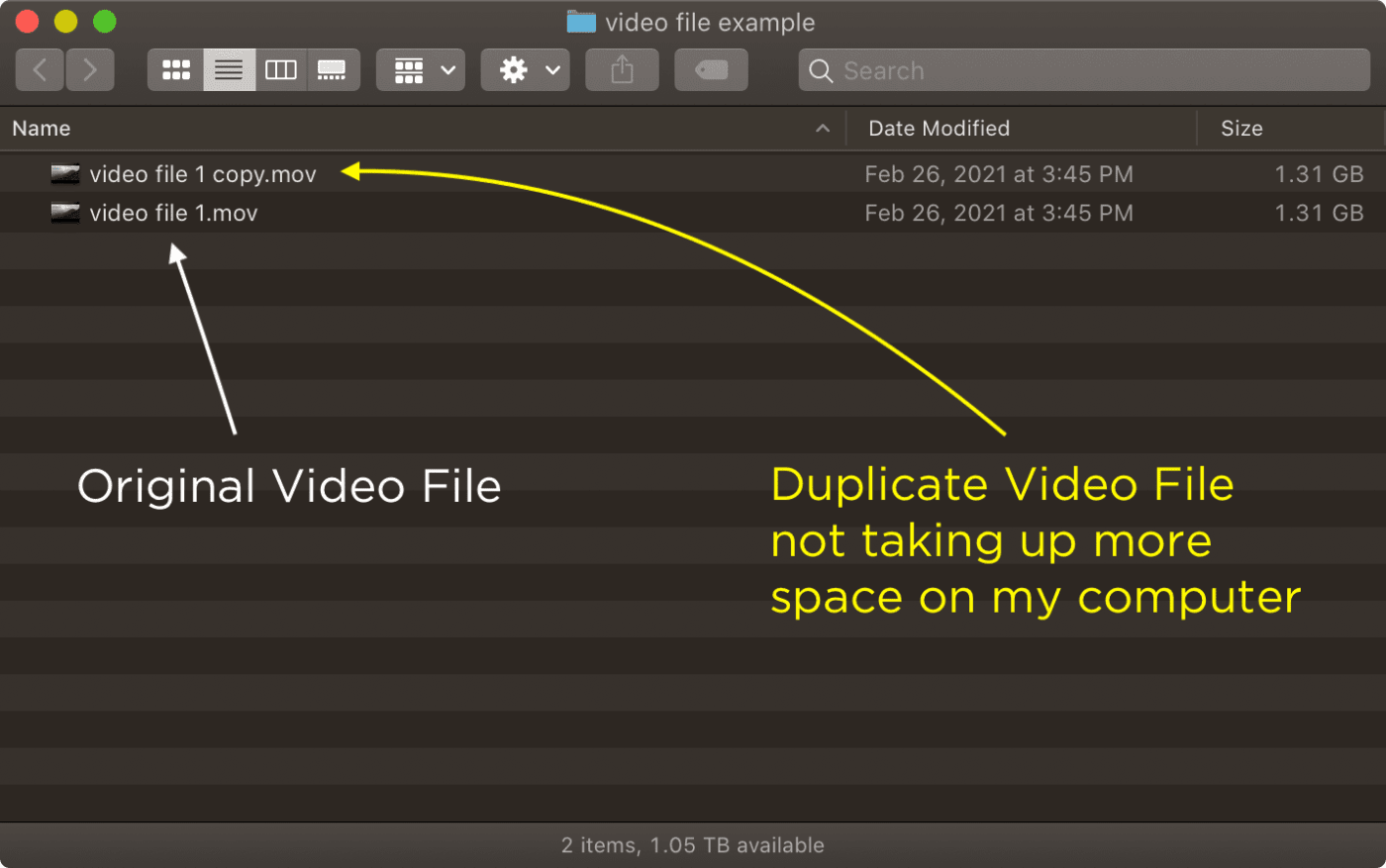
Another great thing about APFS is that it will duplicate your files, even the very large ones, instantaneously. Unlike other formats, which require you to wait to basically copy the file a second time, APFS just magically duplicates it right in front of you in a split second.
However, the SSD-first philosophy APFS was designed with shapes how it behaves on a traditional spinning external hard drive or HDD. APFS's copy-on-write design, where changed files get written to new blocks rather than overwritten in place, can cause fragmentation that slows down a spinning disk over time, especially one that's written to and changed often.
A drive used mostly for static archives won't see much of this; a drive you're actively saving and re-saving files to will. If your HDD doesn’t specifically need APFS's features — encryption, snapshots, Fusion Drive support — on a given external HDD, Mac OS Extended (HFS+) remains a perfectly solid, and often better-performing, choice for that drive.
HFS – Hierarchical File System
HFS has a long history on the Mac. The original Hierarchical File System dates back to 1985, and it was replaced by HFS+ (also called Mac OS Extended) in 1998, which is the version most Mac users have actually interacted with. For nearly two decades, HFS+ was the default file system on every Mac, until Apple introduced APFS in 2017 with macOS High Sierra and made it the new default going forward.
HFS+ wasn’t designed with SSDs, encryption, or snapshots in mind, which is exactly why APFS eventually replaced it as Apple’s default. But HFS+‘s age is also its advantage on one specific type of drive: traditional spinning external hard drives.
HFS+’s file system metadata sits in a fixed location rather than scattered alongside file data the way APFS stores it, so it doesn’t suffer the fragmentation and slowdown that APFS can develop on an HDD over time. If you’re formatting a spinning external drive for Mac-only use and don’t need APFS-specific features, HFS+ remains a solid, well-tested choice — it’s just no longer the default you’ll see pre-selected in Disk Utility.
When you go to format a drive today, HFS+ shows up in a few different flavors:
MacOS Extended (Journaled) — This is the standard version of HFS+, and “journaled” refers to a method of tracking changes on the drive that prevents files from being corrupted if the drive loses power or gets unplugged mid-write. If you’re formatting a Mac-only external hard drive and want the reliability benefits of HFS+ described above, this is the version you want. The one limitation to keep in mind: Windows PCs can’t read this format natively (more on that below).
MacOS Extended Case Sensitive — This variant behaves identically to MacOS Extended (Journaled), with one key difference: it treats files with different capitalization as entirely separate files. Under a case-sensitive format, MyDocument.txt and mydocument.txt are two different files, not one. Unless you have a specific technical reason to need that distinction (some development and server environments do), the standard non-case-sensitive version is the safer choice for everyday use. It’s easy to end up with duplicate, subtly-misnamed files otherwise.
MacOS Extended (Journaled, Encrypted) — HFS+ also supports an encrypted variant, which layers FileVault-style protection on top of the standard journaled format. NOTE: In macOS 28, Apple will drop support for volumes in this format. See the section below for more information.
Support for Encrypted HFS+ Volumes Ends in macOS 28
According to an Apple support document, starting with macOS 28, encrypted Mac OS Extended (HFS+) volumes will no longer be supported. Only unencrypted HFS+ volumes will continue to mount. If you have an older encrypted external HDD, you'll need to either decrypt it or reformat it as APFS before upgrading. Macs running macOS 26 or later may already warn you if a connected drive is affected.
NTFS – for Windows users
NTFS, which stands for New Technology File System, is the default option for Windows PC users when formatting a hard drive. Think of it like APFS except for Windows. And just like APFS a Mac environment, NTFS formatting is going to be the best option for disks in a purely Windows environment.
And while you can format disks in NTFS from your Mac, if you do want to share a disk between your Windows PC and your Mac, there is a better solution — read on.
exFAT
exFAT is an option some users still reach for because it's readable natively on both Mac and PC without any extra software. It replaced the old FAT32 option, and it removes FAT32's file size and volume size limitations (FAT32 topped out at 4GB per file and 8TB per volume), while keeping cross-platform compatibility.
Some exFAT warnings…
It's important to note that exFAT is not "journaled" like APFS or the Windows NTFS option; meaning if you have a catastrophic failure of some kind, like a power outage or your dog running under your desk and pulling out all of your cables, you could lose your entire volume.
It's also worth noting that exFAT doesn't preserve Mac-specific metadata, resource forks, or permissions when files move back and forth between platforms, which can cause quiet, hard-to-diagnose problems in professional workflows like corrupted volumes that suddenly won't mount, dropped file attributes, that sort of thing.
Because of these risks, our recommendation for cross-platform sharing is the following: format the drive as APFS and use OWC MacDrive on the Windows side instead of formatting as exFAT. You get a proper Mac-native, journaled file system, and the Windows user gets full native read/write access without ever touching exFAT's failure modes. More on that below.
So what is the best drive format?
The right format for your disk depends on your scenario. Here are some guidelines to follow:
- If you are a Mac user formatting an SSD and plan to only use this disk on the Mac: format with APFS.
- If you are a Mac user formatting an HDD and don’t need encryption: format with HFS+.
- If you are a Mac user formatting an HDD and need encryption: format with APFS Encrypted.
- If you are a Windows user sharing this drive with other Windows users: format with NTFS.
- If you are a Mac user and need to share this drive with a Windows user or your own Windows PC: format as APFS and install OWC MacDrive on the Windows PC.
If you are a Mac user and have been given a Windows hard drive full of content but you don't have a Windows computer handy… well I said we'd be talking about this and fortunately the solution is very simple.
How to open a hard drive from Mac or Windows on either computer
There are a few great tools in case you ever do need to access and interact with the content on an external hard drive that has not been formatted for your computer.
FOR MAC USERS
If you are a Mac user and you need to open up a Windows NTFS hard drive, I recommend you check out Microsoft NTFS for Mac by Paragon.
FOR WINDOWS USERS
If you are a Windows user and you need to open up a MacOS Extended or APFS hard drive, OWC MacDrive is our recommended tool — with blazing quick read/write speeds and unparalleled data security, you can't go wrong. This is also the pairing we now recommend for ongoing Mac-to-PC drive sharing rather than exFAT, since it lets the drive stay in a proper Mac-native format on both ends.
Now you should be able to successfully create and manage any hard drives you create or receive on your Mac or Windows computers.
Other topics you might like

How NRG Recording Studios is Bringing its Historic Archive Into the Modern Era
Updated on Sep 22, 2026
OWC SoftRAID 9 Brings RAID 6 Protection to Mac and Windows, Introduces RAID 6+
Updated on Sep 21, 2026
How to Maximize Your New M5 Max and M5 Ultra Mac Studio: Storage, Docking, and Connectivity
Updated on Sep 16, 2026